
· Hao Tang · Blog · 3 min read
See how VizSeek works: a 2½-minute film and a tour you can try
Watch how VizSeek finds a part by its shape, from a photo, one view of a drawing or an RFQ, then try it yourself in an interactive tour in your browser.

Drawings here, CAD models there, photos everywhere. VizSeek searches all of them by shape, so you can find the part you already have even when nobody knows what it is called.
Until now, seeing VizSeek meant booking a call. Today there is a short film, and a tour you can take yourself.
Watch the film
In two and a half minutes:
- a photo of an unlabeled part finds its 3D model, its drawing and its part number;
- one view of an old drawing finds the design you already have;
- an RFQ is checked against your own past work before anyone quotes it.
Try it yourself
The tour at vizseek.com/demo is a replica of the VizSeek search screen running in your browser. No signup, nothing to install. Here is exactly what is real in it:
- The library holds 1,469 sample engineering files. Most 3D models and drawings were generated for the demo; 51 parts are modelled from real hardware we photographed.
- The photos: 82 are our own photos of real fittings and casters, 43 are free stock photos, and 136 were made by an AI image model from the demo’s 3D models.
- The results are precomputed to show the workflow. They are not output from the VizSeek engine, and the prices in the RFQ steps are a made-up list.
Three things to try
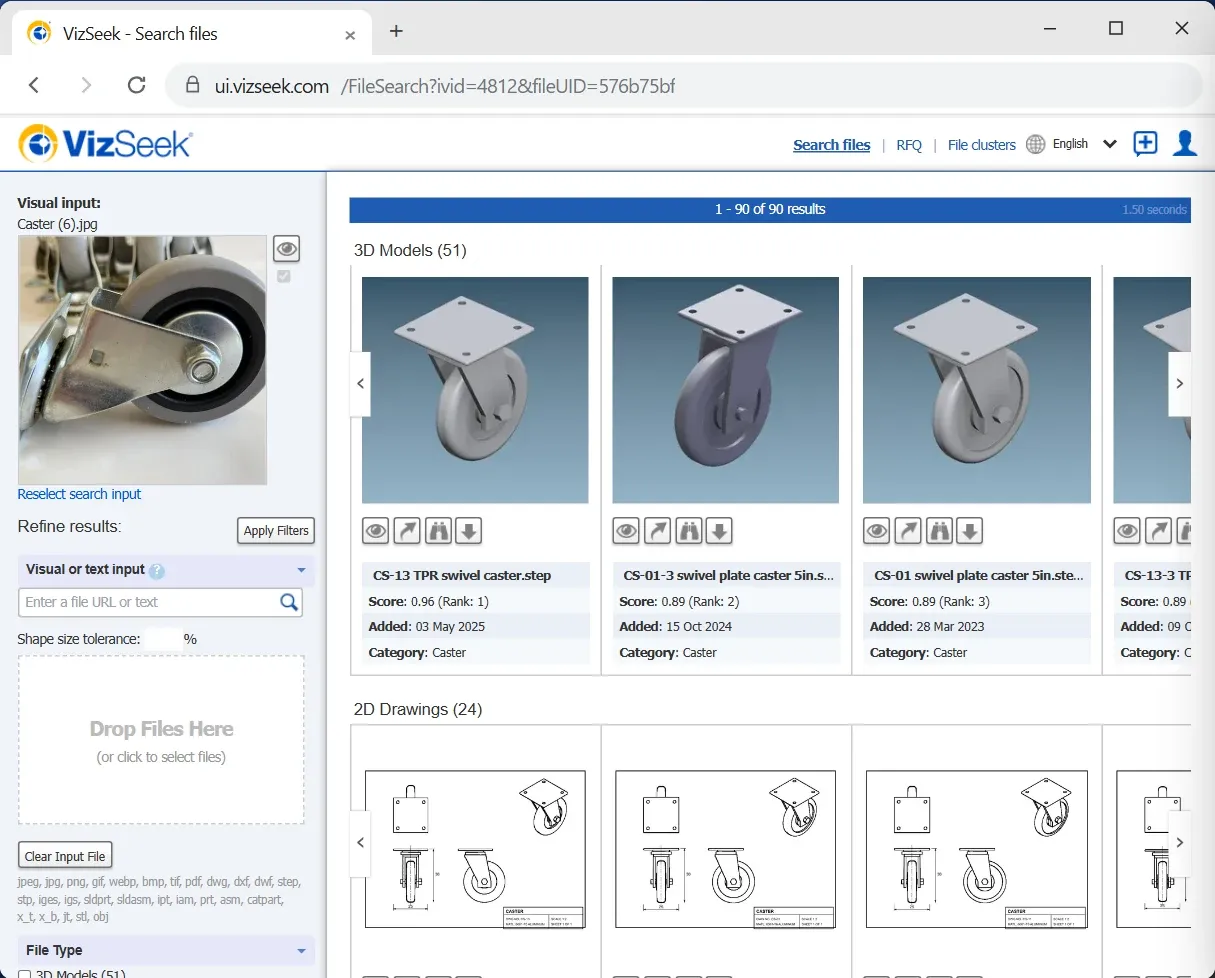
1. Drag in a photo. Open Pictures › Warehouse and drag Caster (6).jpg into the search box. The results group the matching 3D models, drawings and photos of the same caster.
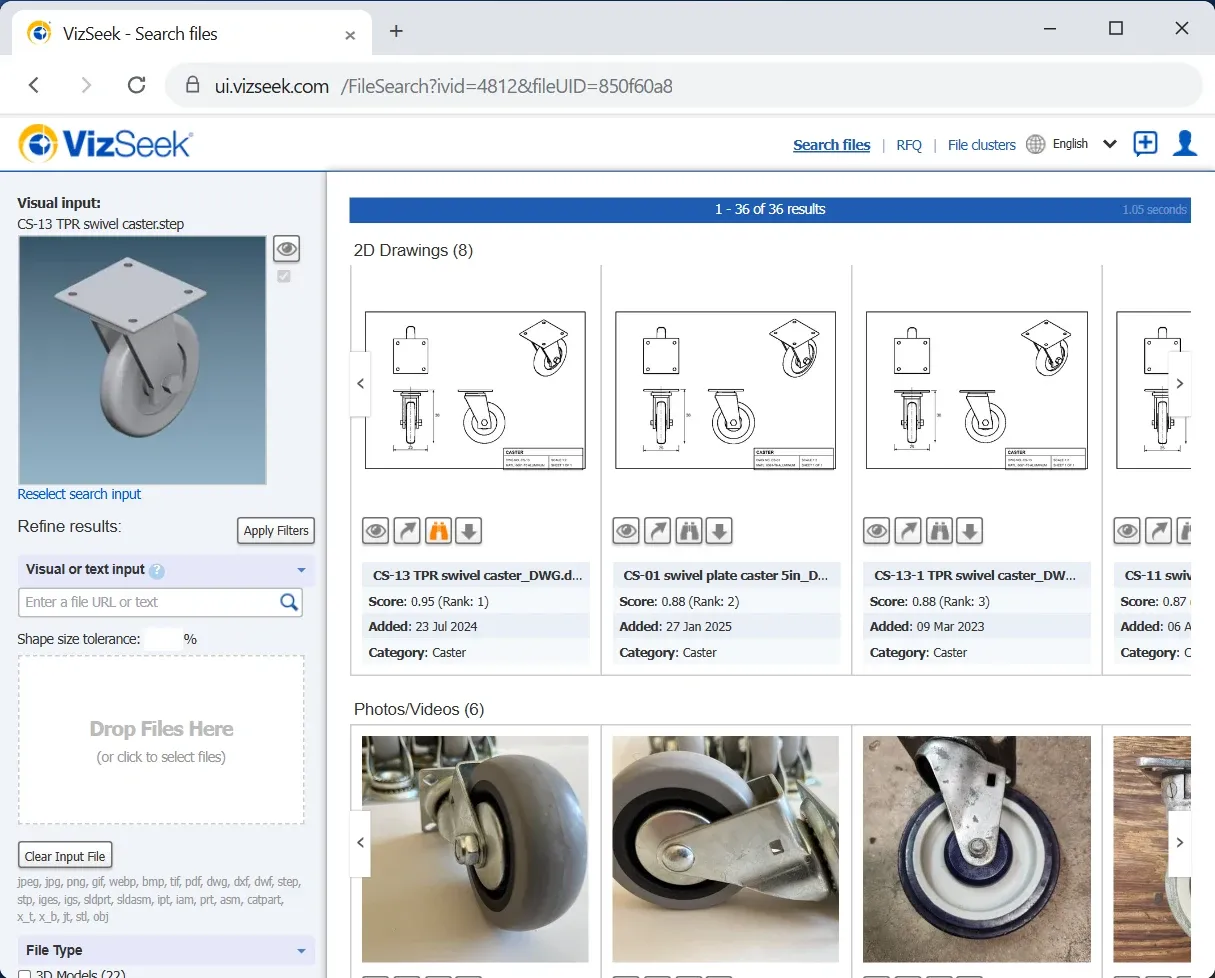
2. Find similar. On the top 3D model, click Find similar. Now the model is the query, and the results reach across file types again: drawings and photos of the same part.
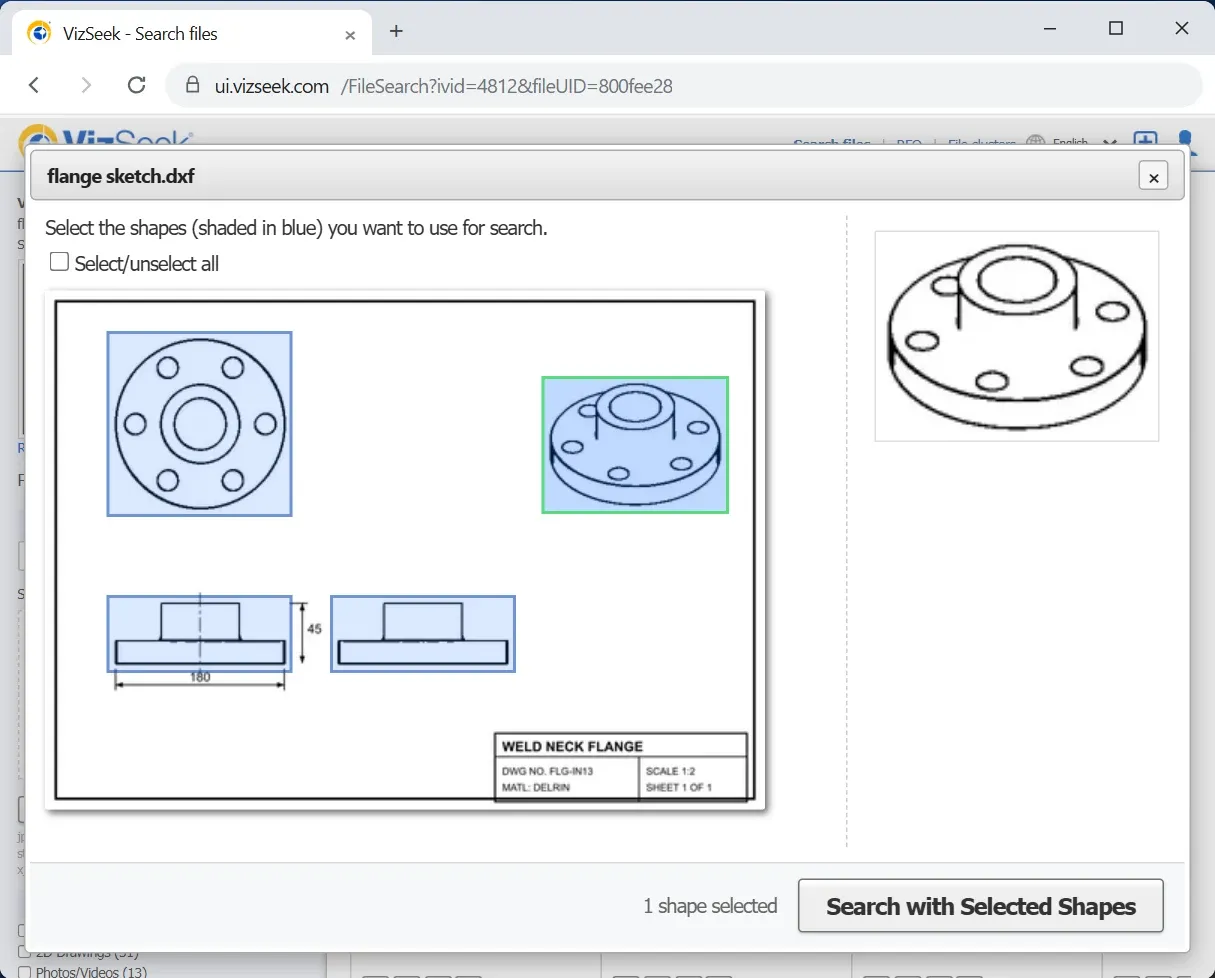
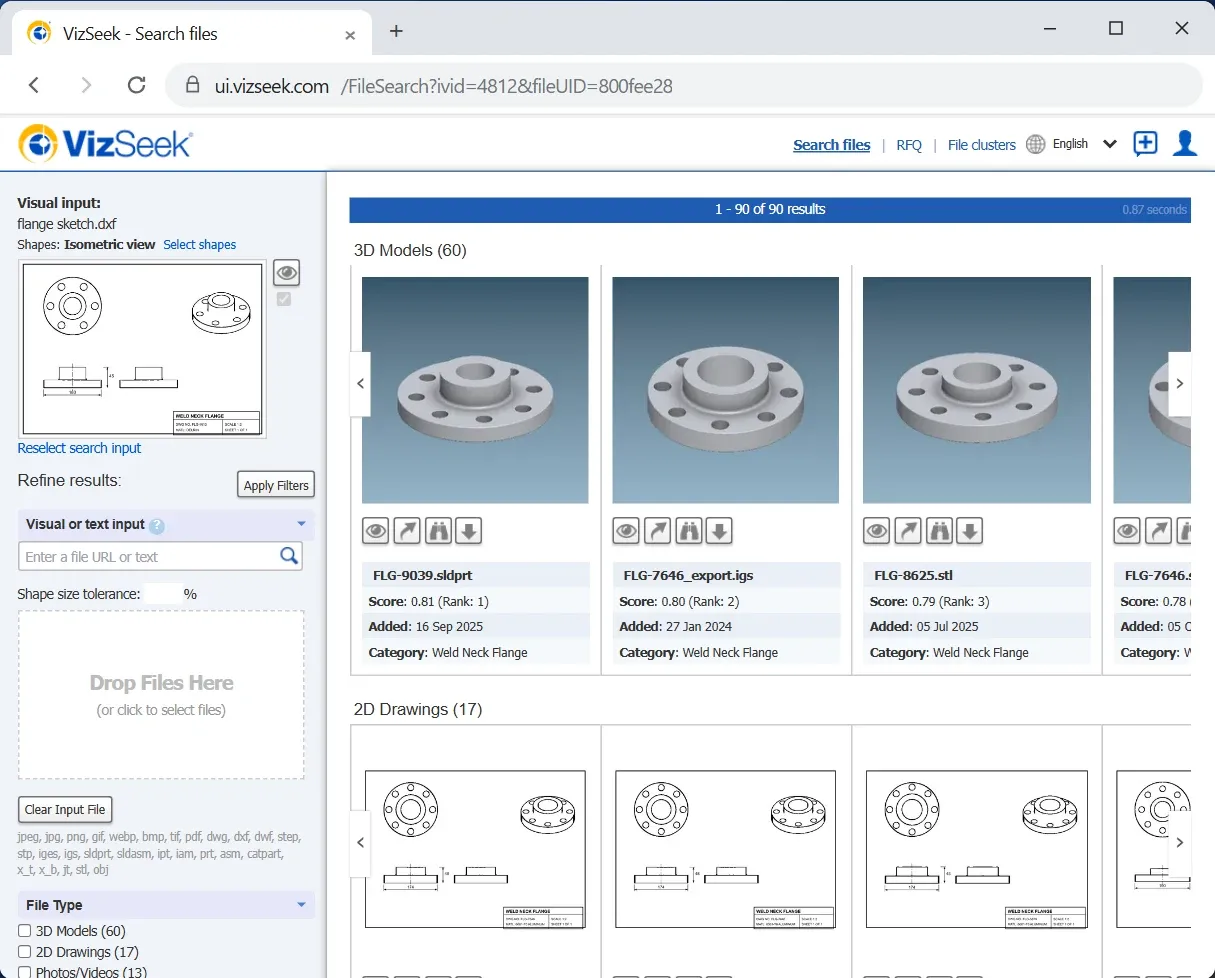
3. Start from one view of a drawing. Drag flange sketch.dxf from the Desktop, click Select shapes and pick the isometric view. VizSeek searches with that one view and finds the flange, whatever file it is in.
The guided tour also walks through an emailed RFQ, an assembly RFQ, and File clusters, which groups duplicate and near-duplicate files across your library.
What the real engine adds
- Your own files. VizSeek indexes your CAD models, drawings, PDFs and photos, more than 40 file types, and searches them by shape.
- Tuned to your parts. We tune it to your parts and your process.
- Where it runs. In our cloud or on your own servers with Docker, with a REST API for your other systems.
See it on your own parts
To see VizSeek on your own parts, under NDA and tuned to them, talk to an engineer.


